
PAX A920
PAX A920 – Android Mobile Payment Terminal
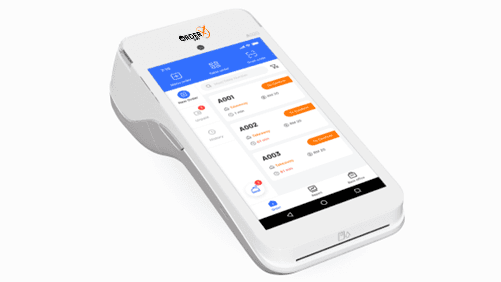
The A920 is a game-changing smart mobile terminal that redefined the industry. With its sleek, ergonomic design, it combines style, security, and performance for a seamless payment experience. Featuring the power of an Android tablet and a robust payment terminal, the A920 offers an integrated camera, high-speed thermal printer, and long-lasting battery—perfect for the fast-paced needs of retail and hospitality businesses.
Highlights
Why choose the PAX A920
- PAXBiz® powered by Android™
- 5″ IPS Touchscreen
- 2″ Thermal Printer, 80mm/sec
- PCI PTS 5.x
Features
PAX A920 features
- Platforms
- PayConex, Decryptx
- Mobile
- Yes
- P2PE
- Yes
- Connection
- Bluetooth, 4G, WiFi(WPA2)
- EMV
- Yes
- Signature Capture
- Yes
- PIN Debit
- Yes
- Keypad
- Yes
- Standalone
- Yes
- PINpad
- Yes
- Semi-Integrated
- No
- Printer
- Yes
- Contactless
- Yes
Specifications
PAX A920 specifications
| Functions | Magnetic card reader, smart card reader, contactless payment reader, 2” thermal printer (80mm per second),.3 MP fixed focus front camera, 5 MP auto focus rear camera |
|---|---|
| Display | 5” IPS WXGA 720 x 1280 pixel multi-point capacitive HD touch screen |
| Communication Interface | 4G + WiFi + Bluetooth 4.0 |
| Power & Battery | 5250mAh 3.7V |
| Charging | Via micro USB and charging base |
| Battery Life | 10 hours |
| Supported Operating Systems | PAXBiz® powered by Android |
| Certification | PCI PTS 5.x SRED EMV® L1 & L2 EMV L1 Contactless Discover D-PAS MasterCard Contactless Visa payWave American ExpressPay Interac Flash UnionPay qUICS |
| Dimensions | 6.92” x 3.07” x 2.24” |
| Weight | 11.3 oz (including battery) |
Have Any Questions?
PAX A920 FAQs
How do I power on/off the PAX A920?
To power on the device, press and hold the power button for 3 to 5 seconds until the screen lights up. To power off, press and hold the power button again for 3 to 5 seconds until the shutdown prompt appears, then confirm the shutdown.
What types of payments does the PAX A920 support?
The PAX A920 supports multiple payment methods, including NFC contactless, chip & PIN, and magstripe transactions, accommodating a wide range of customer preferences.
How can I load paper into the PAX A920's printer?
To load paper, open the printer cover located at the top of the device, insert the thermal paper roll with the paper feeding from the bottom, and close the cover securely. Ensure the paper feeds correctly to avoid printing issues.
What should I do if the PAX A920 won't hold a charge?
If the device isn’t holding a charge, first ensure you’re using the provided charger and cable. Check for any damage to the charging port or cable. If the issue persists, it may indicate a battery problem, and contacting customer support is recommended.
How do I connect the PAX A920 to Wi-Fi?
To connect to Wi-Fi, navigate to the device’s settings menu, select “Wi-Fi,” and choose the desired network from the list. Enter the network password if prompted, and ensure the device indicates a successful connection before processing transactions.
Can I install additional applications on the PAX A920?
The PAX A920 operates on an Android platform, allowing for the installation of additional applications. However, for security reasons, only applications available through the PAXSTORE can be installed on live devices. Debug devices intended for development purposes allow sideloading of APKs via USB.
OrderX POS Portfolio
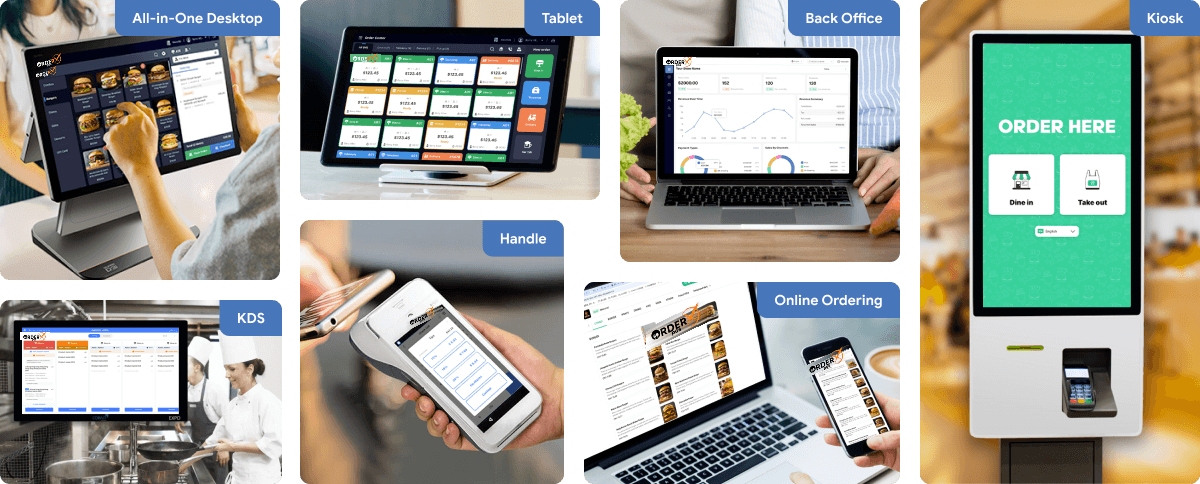
One software suite across every device
OrderX POS software portfolio including Desktop POS, Back office, Handheld APP, KIOSK APP, Online ordering system, KDS (Kitchen Display Screen) APP and etc.
Related devices
Ready to get started?