
PAX A77
PAX A77 – Android Mobile Payment Terminal
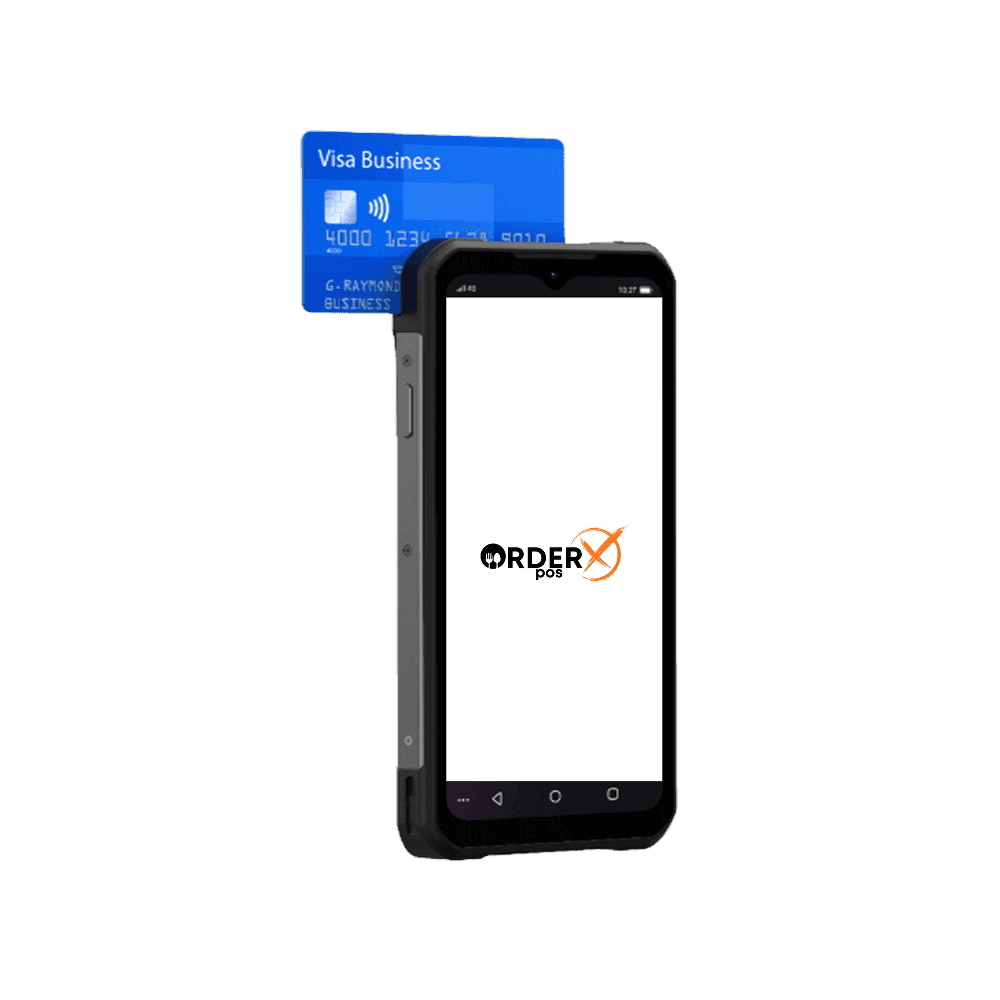
Powered by PAXBiz on Android, the compact A77 offers extensive wireless connectivity. It gives retailers and customers the freedom to process payments anywhere. With a sleek 5.5” color touchscreen, a built-in professional scanner, dual high-resolution cameras, and a long-lasting battery, the A77 enhances digital payments and business operations while strengthening brand engagement.
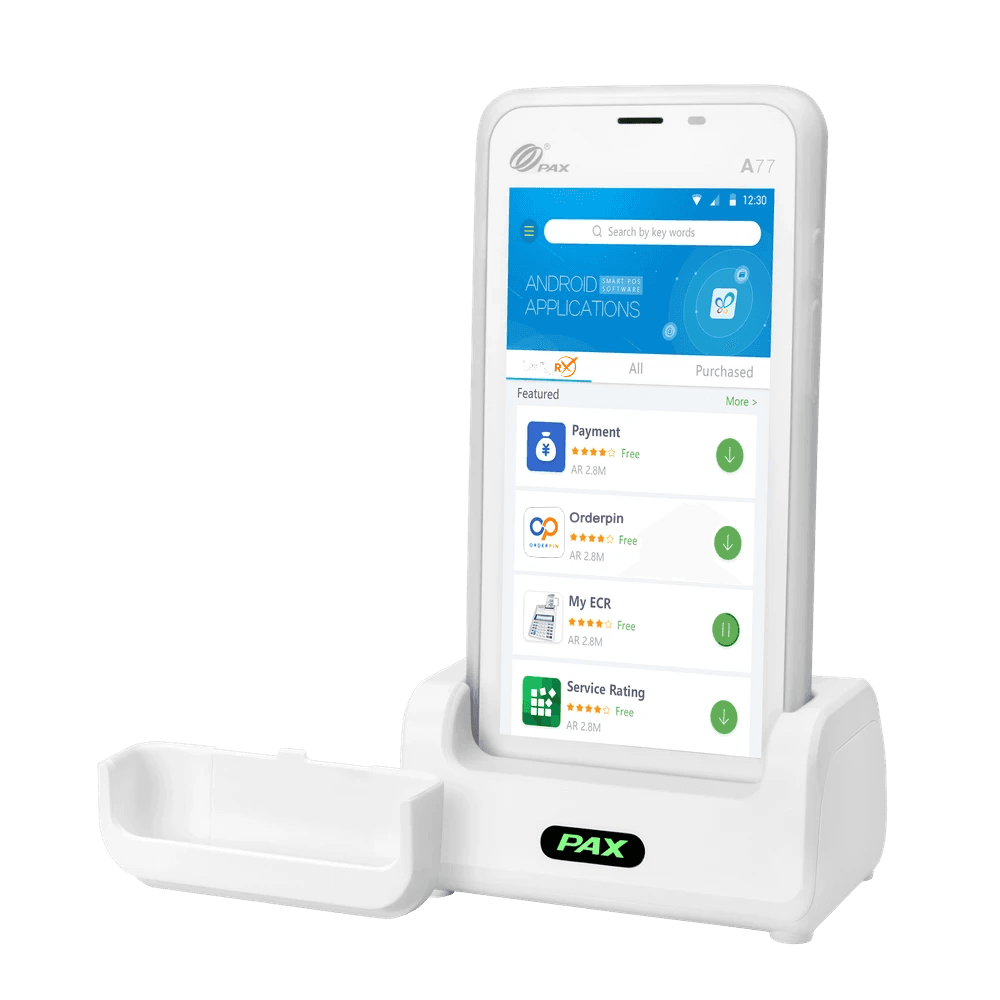
Highlights
Why choose the PAX A77
- Android 10 OS
- 4G + WiFi + Bluetooth 5.0
- Contactless + Chip & PIN + magstripe
- 5.5-inch color touchscreen
- 3.8V/5150mAh rechargeable battery
- 2MP front & 5MP rear camera with option to upgrade
- Optional professional scanner
- USB type-C charging port
- Optional charging station
- PCI PTS 6.x. SRED
Features
PAX A77 features
- Platforms
- PayConex, Decryptx
- Mobile
- Yes
- P2PE
- Yes
- Connection
- Bluetooth, 4G, WiFi(WPA2)
- EMV
- Yes
- Signature Capture
- No
- PIN Debit
- Yes
- Keypad
- No
- Standalone
- Yes
- PINpad
- No
- Semi-Integrated
- Yes
- Printer
- No
- Contactless
- Yes
Specifications
PAX A77 specifications
| Functions | Supports contactless (NFC), Chip & PIN, and magnetic stripe payments. Optional professional barcode scanner for enhanced data capture. |
|---|---|
| Display | 5.5-inch IPS high-resolution multi-touchscreen with a 720 x 1440 pixel display. |
| Communication Interface | 4G LTE, Wi-Fi (2.4GHz), and Bluetooth 4.0 connectivity. Optional support for Wi-Fi 5GHz and Bluetooth 4.2. |
| Power & Battery | Standard 3.8V, 5150mAh rechargeable battery. Optional 3020mAh battery available. |
| Charging | USB Type-C charging port. Optional docking station for convenient charging. |
| Supported Operating Systems | PAXBiz® powered by Android™ 8.1 |
| Certification | PCI PTS 5.x, SRED certified for secure transactions. |
| Dimensions | Length: 158.8 mm, Width: 76.4 mm, Thickness: 14.5 mm (with 3020mAh battery) or 17.8 mm (with 5150mAh battery) |
| Weight | Approximately 234g with the 3020mAh battery. Approximately 273g with the 5150mAh battery. |
Have Any Questions?
PAX A77 FAQs
How do I install a MicroSD card in the PAX A77?
To install a MicroSD card: 1. Power off the terminal. 2. Open the battery cover on the bottom of the device. 3. Remove the battery. 4. Insert the MicroSD card into the designated slot. 5. Reinsert the battery and replace the cover.
How can I process a payment on the PAX A77?
To process a payment: 1. Enter the transaction amount on the terminal. 2. Present the customer’s card: Swipe magnetic stripe cards through the reader – Insert chip cards into the IC card slot – Tap contactless cards near the NFC sensor. 3. Follow on-screen prompts to complete the transaction.
What steps should I follow to perform a factory reset on the PAX A77?
To perform a factory reset: 1. Navigate to “Settings” on the terminal. 2. Enter the system password. 3. Select “System” > “Reset options.” 4. Choose “Erase all data (factory reset)” and confirm.
What should I do if the PAX A77 terminal freezes or becomes unresponsive?
If the PAX A77 becomes unresponsive, perform a reboot by pressing and holding the power button for about 3 seconds until the shutdown menu appears, then select “Reboot.” If the device remains unresponsive, remove the battery, wait a few seconds, reinsert it, and power the device back on.
OrderX POS Portfolio
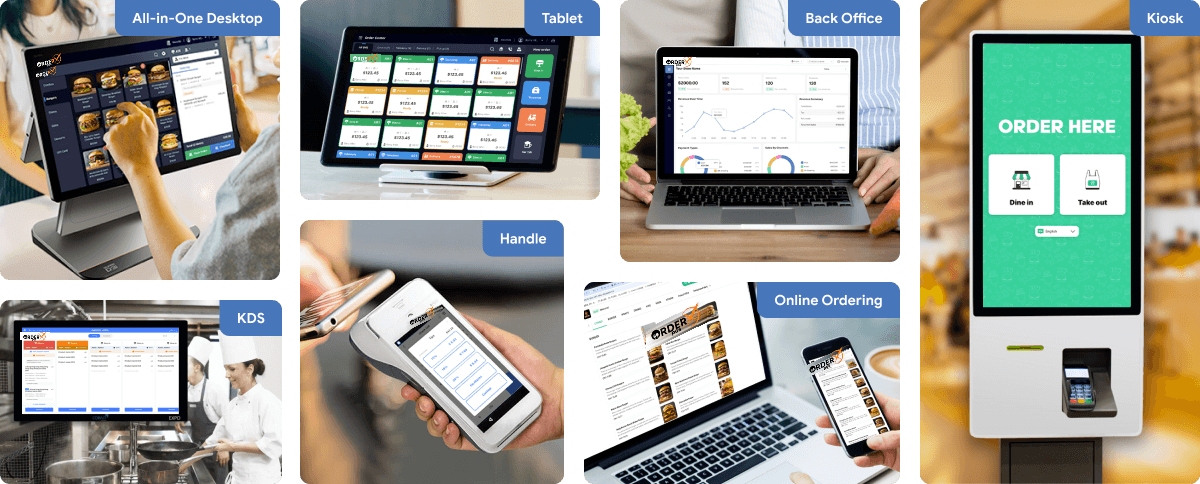
One software suite across every device
OrderX POS software portfolio including Desktop POS, Back office, Handheld APP, KIOSK APP, Online ordering system, KDS (Kitchen Display Screen) APP and etc.
Related devices
Ready to get started?